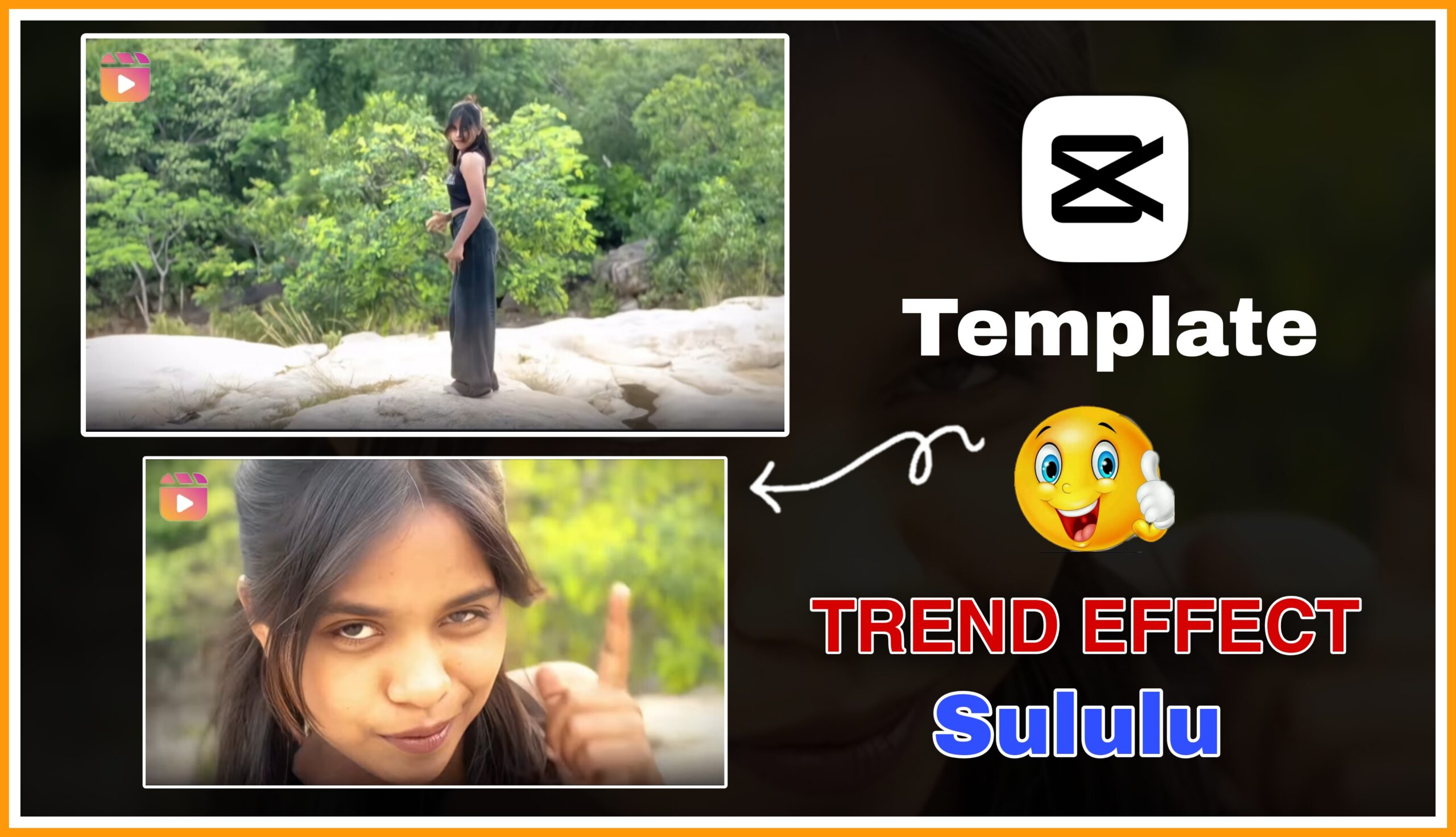
Social media is constantly buzzing with short, energetic dance videos set against scenic backdrops. In this specific video, two creators are seen dancing and posing in a picturesque, rocky riverbed area. If you want to replicate this dynamic look, here is a breakdown of the video’s contents and how to recreate its signature effects using the CapCut app.
Details of how to heloo chululululu dialogue
By combining a catchy audio intro, strategic White Flashes, sharp Shake Transitions, and synchronized Speed Ramping, this video achieves a highly engaging aesthetic perfect for platforms like Instagram Reels or TikTok. All of these features are readily accessible in CapCut’s free effect library.The video kicks off with a brief spoken audio track that sets the rhythm before the heavy beat drops.
The Dialogue: “Hello, Chulululu…”
This playful opening acts as a cue, immediately transitioning into a high-energy electronic dance track that matches the synchronized movements of the creators.

Key Video Effects & Editing Breakdown
To achieve the sharp, engaging style shown in the clip, several specific transitions and effects were utilized. You can easily find and apply these within CapCut:
A. The “Flash” or “White Flash” Effect
How it’s used: At the beginning of the video and during major beat drops (such as the transition at 00:03), a sudden white flash illuminates the screen.
CapCut Guide: Go to Effects > Video Effects > Trending/Nightclub, and look for White Flash. Adjust the speed so it aligns perfectly with the heavy bass hits in your audio track.
B. The “Shake” Transition
How it’s used: When the camera cuts between the solo shots of the dancer in the black top and the girl in the orange cap sitting on the rocks, there is a distinct, energetic screen shake.
CapCut Guide: Tap on the transition icon (the small box between two video clips on your timeline). Under the Movement or Action category, select Shake or Bounce. Keep the duration short (around 0.2 to 0.4 seconds) to maintain a fast-paced rhythm.
How to create this video in CapCut application
Velocity / Speed Ramping
How it’s used: The video smoothly shifts between standard speeds and fast, snappy cuts to emphasize the dance moves and poses.
CapCut Guide: Select your video clip, tap Speed, and choose Curve. You can use the Custom option to speed up during transitions and slow down slightly during a pose, creating a rhythmic “Velocity” effect that synchronizes with the music.
D. Text Overlay & Handles
How it’s used: Throughout the video, an Instagram watermark handle (@KOMAL_LAKRA11) is cleanly placed on the right side of the screen.
CapCut Guide: Tap Text > Add Text, type in your social media handle, and choose a clean, sans-serif font. Adjust the opacity slightly so it doesn’t distract from the main video content, and drag the text bar across the entire timeline.
Conclusion
combining a catchy audio intro, strategic White Flashes, sharp Shake Transitions, and synchronized Speed Ramping, this video achieves a highly engaging aesthetic perfect for platforms like Instagram Reels or TikTok. All of these features are readily accessible in CapCut’s free effect library.